

Please note: this article contains affiliate links. If you buy through these, we may receive a commission at no extra cost to you. Using our links supports our work.
Looking for an Omnisend free trial? The good news is that you can use the platform for as long as you like without paying anything — Omnisend offers a permanently free plan that gives you ongoing access to its email marketing and automation tools, with no credit card required.
And unlike a conventional free trial, there’s no trial period to worry about: you can stay on the free plan for as long as it meets your needs.
If you do decide to move to a paid plan, Ecommercetrix readers can get 30% off their first three months of Omnisend by paying for those three months upfront and applying the ECOMMERCETRIX30 discount code when purchasing a plan.
(After that, you’ll move to regular monthly billing.)
You can access the free plan here, or read on to learn more about it.
What do you get with the Omnisend Free plan?
Omnisend’s Free plan gives you access to a wide range of tools for running and growing an ecommerce business. You can use it to create and send email campaigns, build marketing automations, segment your audience, create signup forms and popups, and track your marketing performance.
There’s no time limit on the Free plan, and you can upload as many contacts to your Omnisend account as you like — making it a useful way to explore the platform and get familiar with the it before deciding whether to upgrade.
There are some important limits to be aware of, however. On the free plan, you can only send campaigns to 250 contacts, and send a maximum of 500 emails per month.
(If you upload more than 250 contacts to a free Omnisend account, you’ll need to create a segment containing 250 or fewer recipients before sending a campaign.)
The Free plan also lacks some of Omnisend’s more advanced features, including multi-step automations, A/B testing, advanced segmentation, and SMS marketing.
So, the Free plan is a good way to try Omnisend properly and even run basic email marketing campaigns with it. But if your audience grows beyond 250 contacts — or you need more sophisticated marketing functionality — you’ll need to move to a paid plan.
What do you get with Omnisend’s paid plans?
Omnisend offers two paid plans — Standard and Pro.
The Standard plan starts at $16 per month and is aimed primarily at businesses that need to send more emails than the Free plan allows. Your monthly email allowance is calculated as 12 times your billable contact count — so, for example, a plan covering 3,000 contacts lets you send up to 36,000 emails per month. You also get unlimited web push notifications and live chat support.
The Pro plan starts at $59 per month and is aimed at growing businesses that need higher sending limits and more advanced marketing features. It includes unlimited email sends, access to more advanced personalization features, and the option to add SMS marketing.
One important thing to bear in mind is that these are starting prices. The actual cost of a paid Omnisend plan depends on the number of billable contacts in your account — something I’ll look at in more detail below.
How do I get 30% off Omnisend?
Ecommercetrix readers can get 30% off their first three months of an Omnisend paid plan. To access this discount, you’ll need to pay for the three months upfront; after this period ends, you’ll be billed monthly at the regular rate.
To get the discount:
Go to the Omnisend website using our special signup link and click the signup button.
Create your Omnisend account. You can sign up with your email address, Google account, or Shopify account.
Once you’re inside the Omnisend interface, click the ‘Upgrade with 30% off’ button in the top-right corner of the screen.
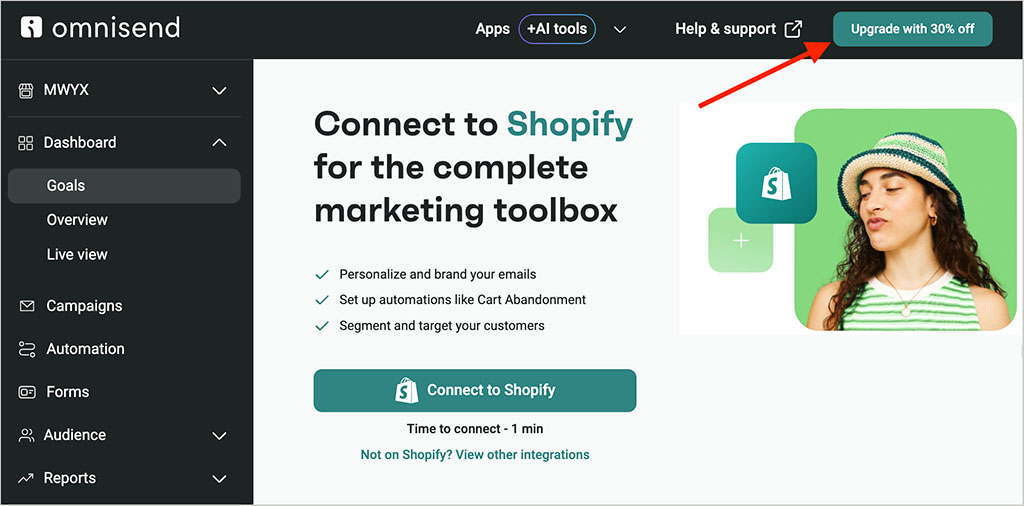
You’ll be taken to the ‘Choose your plan’ page. Look for the discount code field in the bottom-left corner of this page — it can be easy to miss.
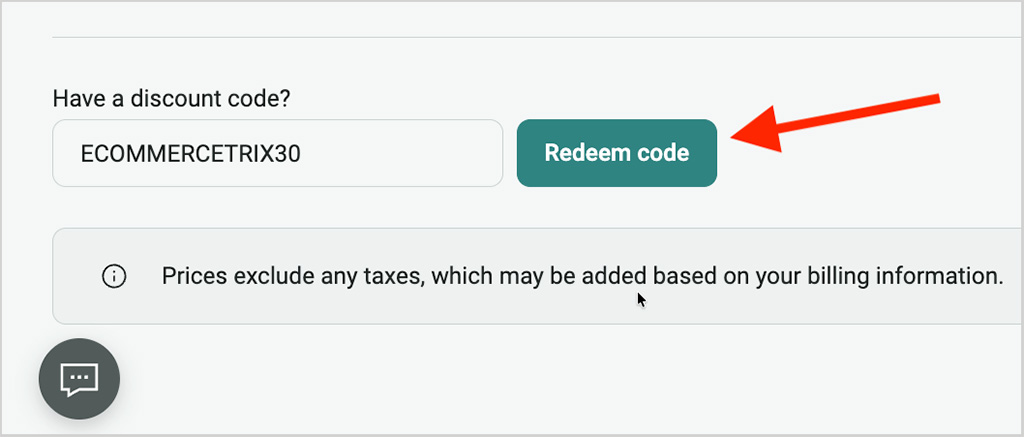
Enter ECOMMERCETRIX30 in the discount field and apply the code.
Choose the paid plan you want to use.
And finally, complete your purchase to start your three-month discounted period. After the initial three-month discounted period, your subscription automatically switches to standard monthly pricing.
How does Omnisend billing work?
Omnisend’s paid plans use contact-based pricing, which means the amount you pay increases as the number of billable contacts in your account grows.
Importantly, a billable contact isn’t necessarily the same thing as an email subscriber. Omnisend counts both subscribed contacts and certain non-subscribed contacts — such as customers who receive transactional or behavioral automations — when determining your pricing tier.
This means your Omnisend bill can increase even if the number of people subscribed to your marketing emails stays the same.
Your contact count also affects how many emails you can send on the Standard plan. Your monthly allowance is 12 times your billable contact count — so 1,000 billable contacts gives you an allowance of 12,000 emails per month, while 3,000 gives you 36,000.
(The Pro plan, by contrast, includes unlimited email sends.)
Omnisend automatically adjusts your pricing tier as your billable contact count changes, so it’s worth keeping an eye on this figure as your audience grows.
How can I keep my Omnisend costs down?
There are a few simple ways to prevent your Omnisend costs from becoming unnecessarily high:
- Remove inactive contacts that are no longer opening your emails or making purchases.
- Monitor your billable contact count regularly so that an increase doesn’t come as a surprise.
- Use Omnisend’s pricing calculator to see how changes to your audience will affect your monthly subscription cost.
One thing to note is that cleaning inactive contacts won’t reduce your pricing tier immediately — any change is reflected at the start of your next billing cycle.
How do I cancel my Omnisend subscription?
You can cancel a paid Omnisend subscription at any time. Your Standard or Pro plan remains active until the end of your current billing cycle, after which your account automatically moves to Omnisend’s Free plan.
To cancel your subscription:
- Go to Store Settings in the left-hand sidebar.
- Choose Pricing and usage and open the Plan overview tab.
- Click Cancel or Downgrade to the Free Plan.
- Confirm your selection.
Once your paid subscription ends, you’ll lose access to paid features such as multi-step automations, A/B testing, advanced segmentation and SMS. However, your contacts, campaigns, and reports are preserved, and you can upgrade again at any time to restore paid functionality.
Canceling is different from deleting your Omnisend account. Canceling returns you to the Free plan and preserves your data; deleting your account permanently removes your contacts, campaigns, automations, reports, and settings.
One thing to watch out for is inactivity: free accounts can be automatically deleted after six months without a login. Omnisend sends warning emails before doing this, however.
Can I downgrade my Omnisend plan?
If you’re on a paid Omnisend plan, you can downgrade to a cheaper pricing tier through the Pricing and usage section of your account.
Unlike canceling the Free plan, a downgrade to a cheaper paid tier takes effect immediately and starts a new 30-day billing cycle. You won’t receive a refund for any unused time on your previous plan; instead, Omnisend applies the unused amount as credit toward your new plan and, if any credit remains, toward your next bill.
One restriction is that the cheaper tier must support your current number of billable contacts. If it doesn’t, you’ll need to reduce your contact count before you can downgrade.
To downgrade, go to Store Settings > Pricing and usage > Plan overview > Manage, choose the plan or tier you want and click Downgrade.
Can I freeze my Omnisend subscription?
If you want to stop using Omnisend temporarily without canceling your account, you can freeze your subscription for a one-time $50 fee.
Your paid plan remains active until the end of the current billing cycle, after which paid features are disabled, but your account and data are preserved for up to 12 months. You can continue using Free plan features during this period and reactivate your paid subscription at any time.
This option can be particularly useful for seasonal businesses, businesses taking an extended break, or anyone temporarily trying another marketing platform but wanting to keep their Omnisend setup intact.
To freeze your subscription, go to Store Settings > Pricing and usage > Plan overview, click Freeze Your Subscription and pay the $50 fee. You can only freeze an account once every 12 months.
Do I need a credit card to use Omnisend?
You don’t need to provide any credit card details to sign up for or use Omnisend’s Free plan. You can create an account and start exploring the platform without entering any payment information.
You’ll only need to provide payment details if you decide to upgrade to a Standard or Pro plan. This means there’s no risk of being automatically charged simply because you signed up to try Omnisend.
Is Omnisend good for ecommerce?
Omnisend is specifically designed for ecommerce businesses, and many of its features are built around the needs of online retailers.
For example, its email editor includes a Product Picker that lets you pull product images, prices, and links directly from your store into campaigns. You also get ecommerce-focused automations for tasks like abandoned cart recovery, welcome emails, order confirmations, cross-selling, and customer reactivation.

Its segmentation tools let you target customers based on factors such as purchase history, shopping behavior, and engagement, while integrations with platforms including Shopify, WooCommerce, BigCommerce, and Wix make it easy to connect your store.
Overall, Omnisend is a particularly strong option for merchants looking for an easy-to-use email marketing and automation tool with a strong ecommerce focus.
You can learn more about Omnisend’s ecommerce features in our full Omnisend review here.
What are the key alternatives to Omnisend?
GetResponse, AWeber, Mailchimp, and Klaviyo are all key alternatives to Omnisend. GetResponse is a particularly good option if you want a broader set of marketing tools — in addition to email marketing and automation, it provides webinar hosting and content monetization tools. AWeber is a straightforward choice for businesses primarily focused on email marketing, while Mailchimp combines email marketing with a wide range of marketing and audience-management features.
Klaviyo is arguably Omnisend’s closest competitor, thanks to its similarly strong focus on ecommerce and sophisticated automation and segmentation tools. However, Omnisend is generally easier to get started with, making it an attractive option for merchants who want powerful ecommerce marketing features without a steep learning curve.
Final thoughts and Omnisend signup link
Omnisend’s Free plan is a great way to explore the platform without making any financial commitment — there’s no time limit and no credit card required, so you can take as long as you need to decide if it’s right for your business.
You can sign up for Omnisend here. And if you decide to upgrade, remember to use the code ECOMMERCETRIX30 to get 30% off your first three months of a paid plan.
Related resources
